Session tracking
Log time, duration, left/right volumes, notes, tags and, with Premium, the equipment used. The daily summary updates automatically.

PumpDiary helps you log pumping sessions, organize reminders, manage milk storage, track equipment and review history without adding mental load. Start locally without an account, then enable Premium and online backup only if you need it.
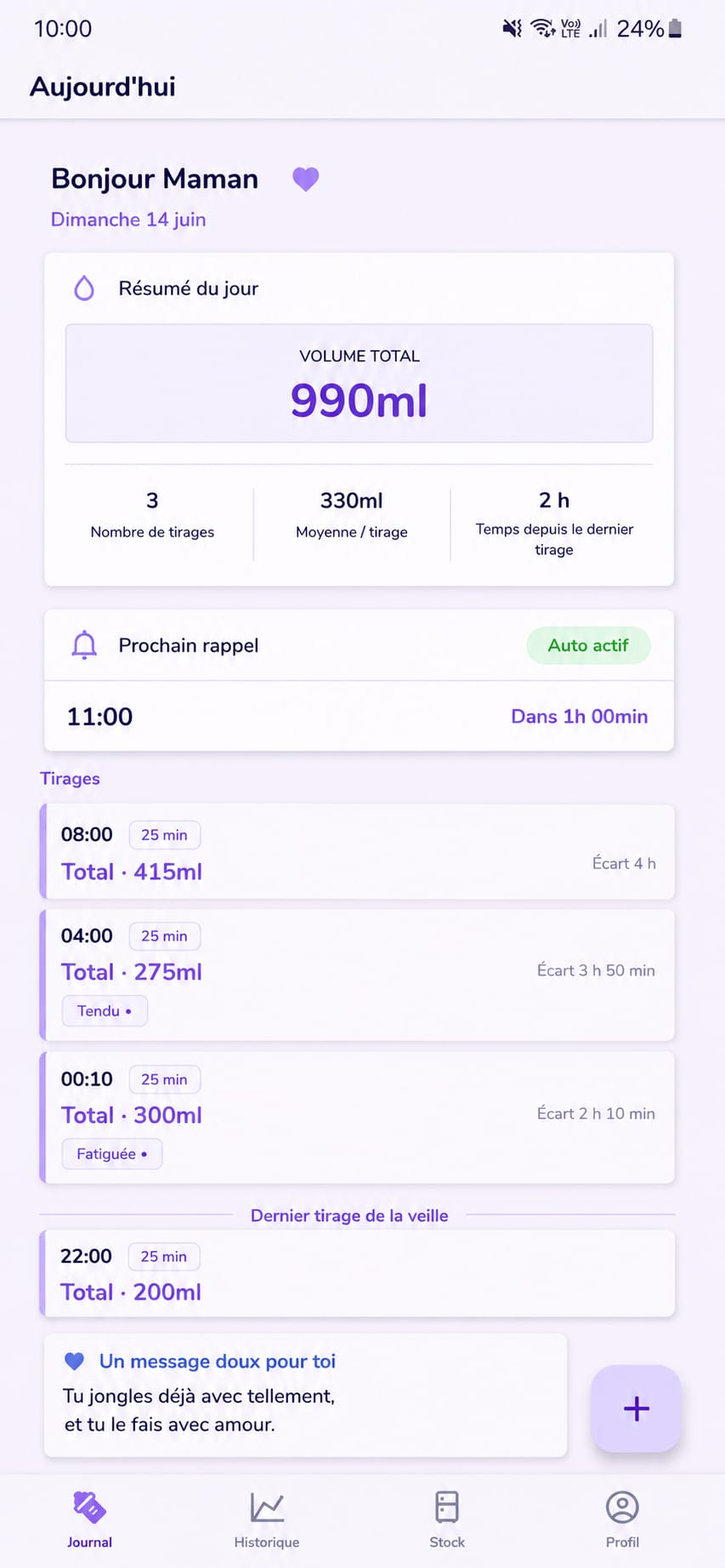
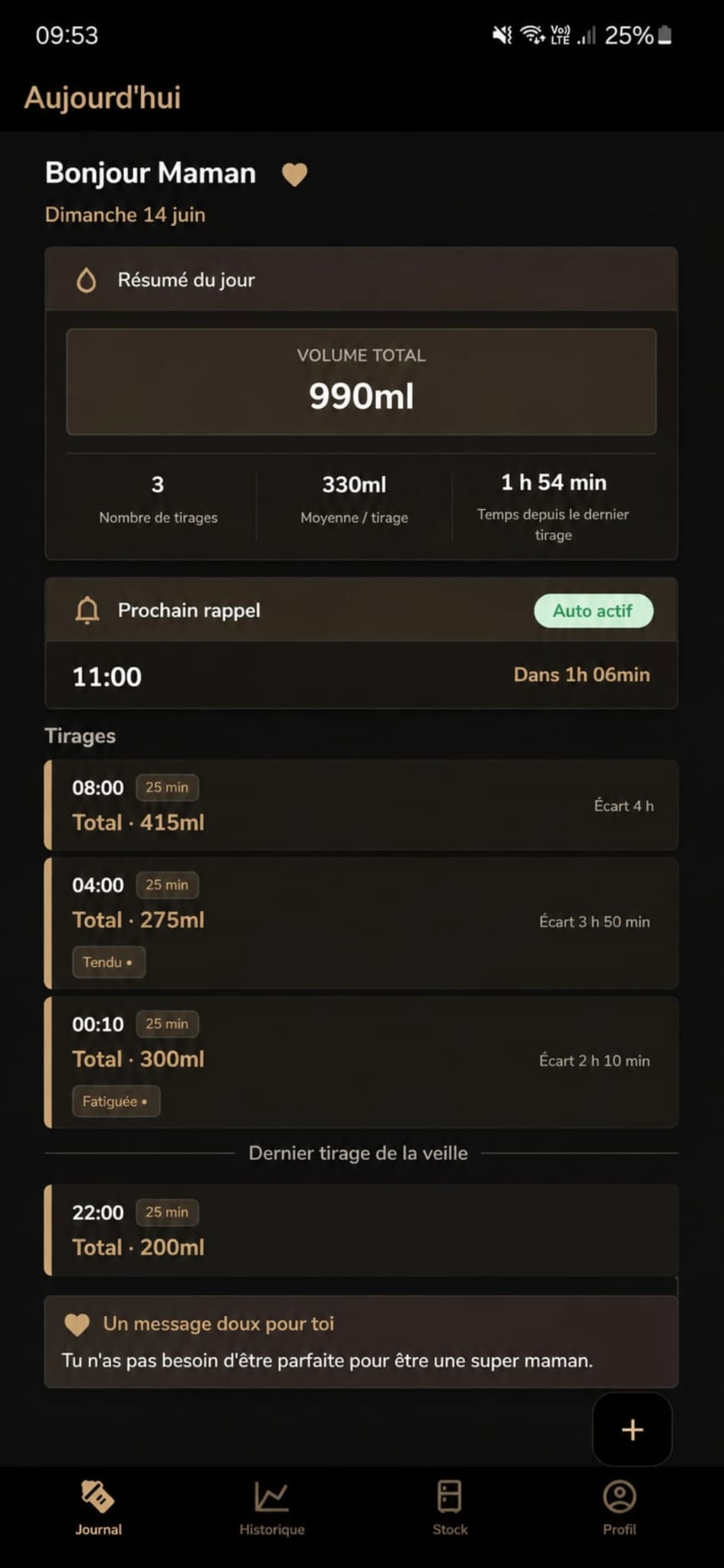
PumpDiary brings together the pumping journal, reminders, storage, equipment and sharing, with local-first data by default.
Log time, duration, left/right volumes, notes, tags and, with Premium, the equipment used. The daily summary updates automatically.
Review the last 3 days for free. Premium unlocks full history and 7-day, 30-day and all-time statistics periods.
Manage fridge and freezer bags, remaining volumes, partial use and bags to use soon based on the recommendation you choose.
Plan reminders based on the last pumping session or create a custom rhythm with preview. Reminders help you organize; they are not medical recommendations.
Start Classic, Express or custom protocols, follow each segment with a timer, then create a prefilled pumping session at the end.
Keep the useful context for each session: sensations, breast comfort, tags and notes. Helpful when you need to review a day without remembering everything.
Add baby profile details, breast pumps and flange sizes. With Premium, each session can keep a snapshot of the equipment used.
With Premium + online backup, share a profile by link or code and choose permissions: co-parent, History/Stats read access or Stock access.
Without online backup enabled, data stays on your device. Backup, multi-device sync and sharing require Premium and explicit consent.
PumpDiary supports an intimate daily routine. The app prioritizes clarity, user control, and a non-medical approach.
Without online backup enabled, data stays on the device. You can use the app without an account for local tracking.
Backup, multi-device sync, online export/restore and sharing require an account, Premium access, and explicit consent.
Calculations help with organization. They never replace advice from a qualified healthcare professional.
Pumping, baby, storage and equipment data is not intended for targeted advertising, sold or transmitted to AI services.
Legal documents, the privacy policy, and account deletion information remain available from the website.
An app designed to simplify pumping days, from local journaling to optional online backup and sharing.
See your day at a glance: number of sessions, total volume, per-breast split, time since the last pumping session and next reminder.
Log a new pumping session in seconds. Pick duration, enter left/right volumes, add notes and tags, then link the session to storage or equipment when Premium is active.

Review the latest days for free, then all your pumping sessions with Premium. Days are organized by month with total, per-breast split, session count, average gap and total duration.

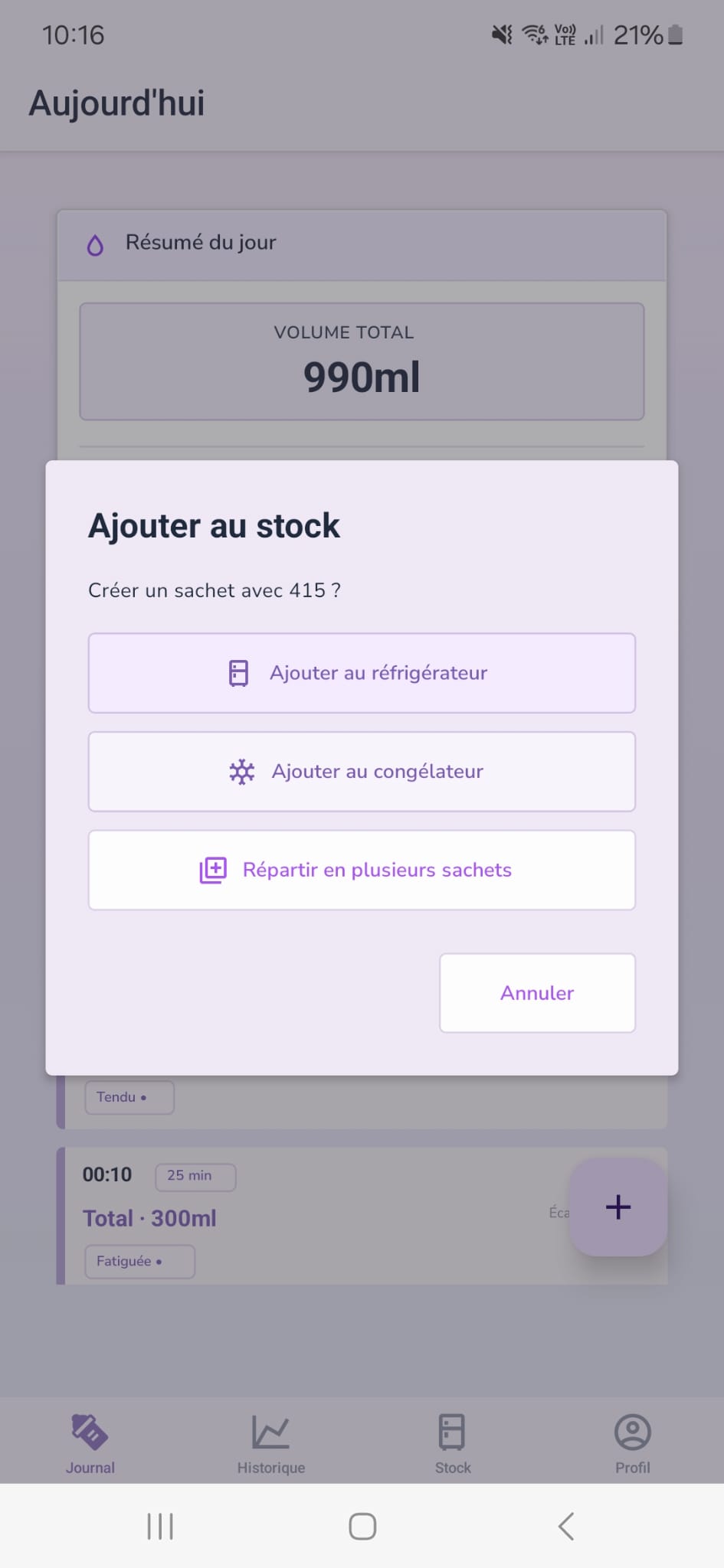
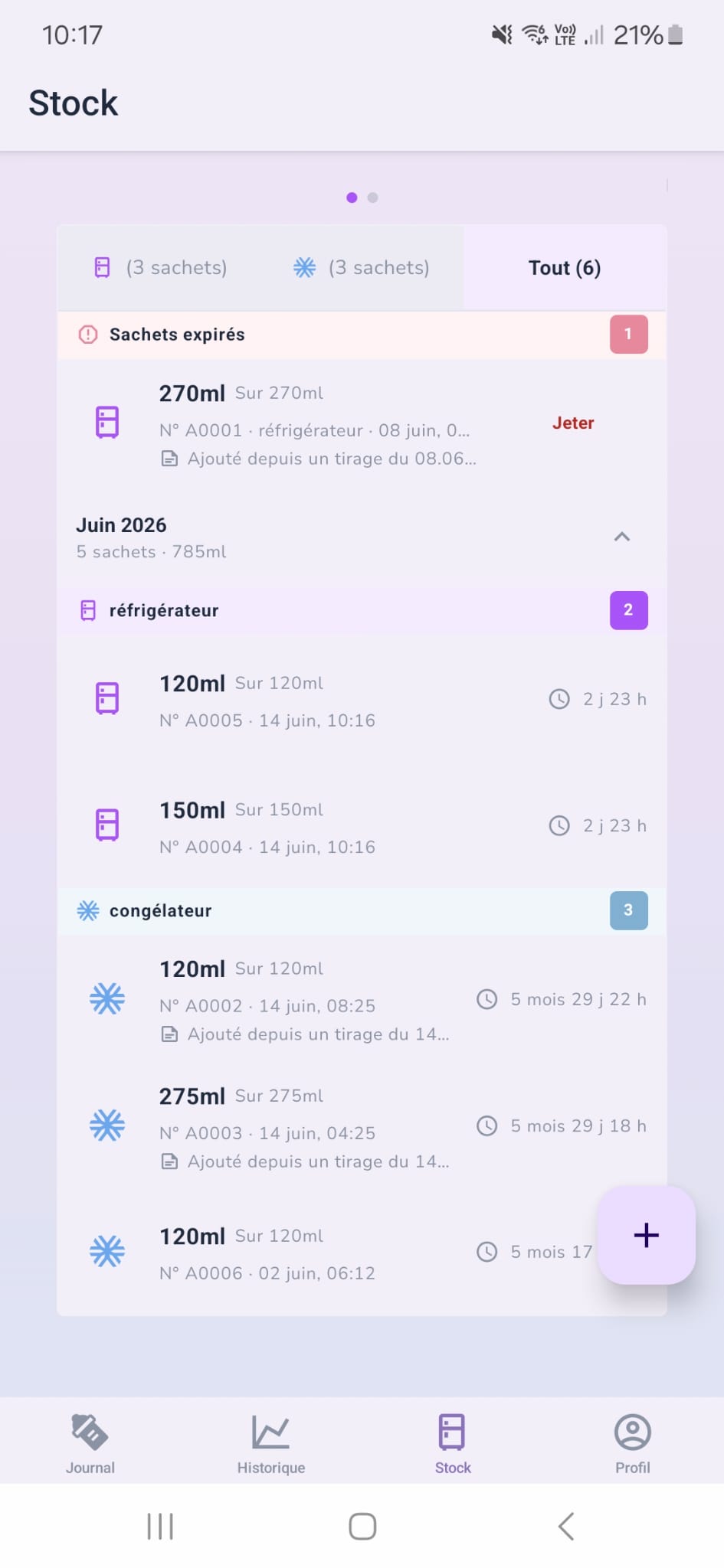
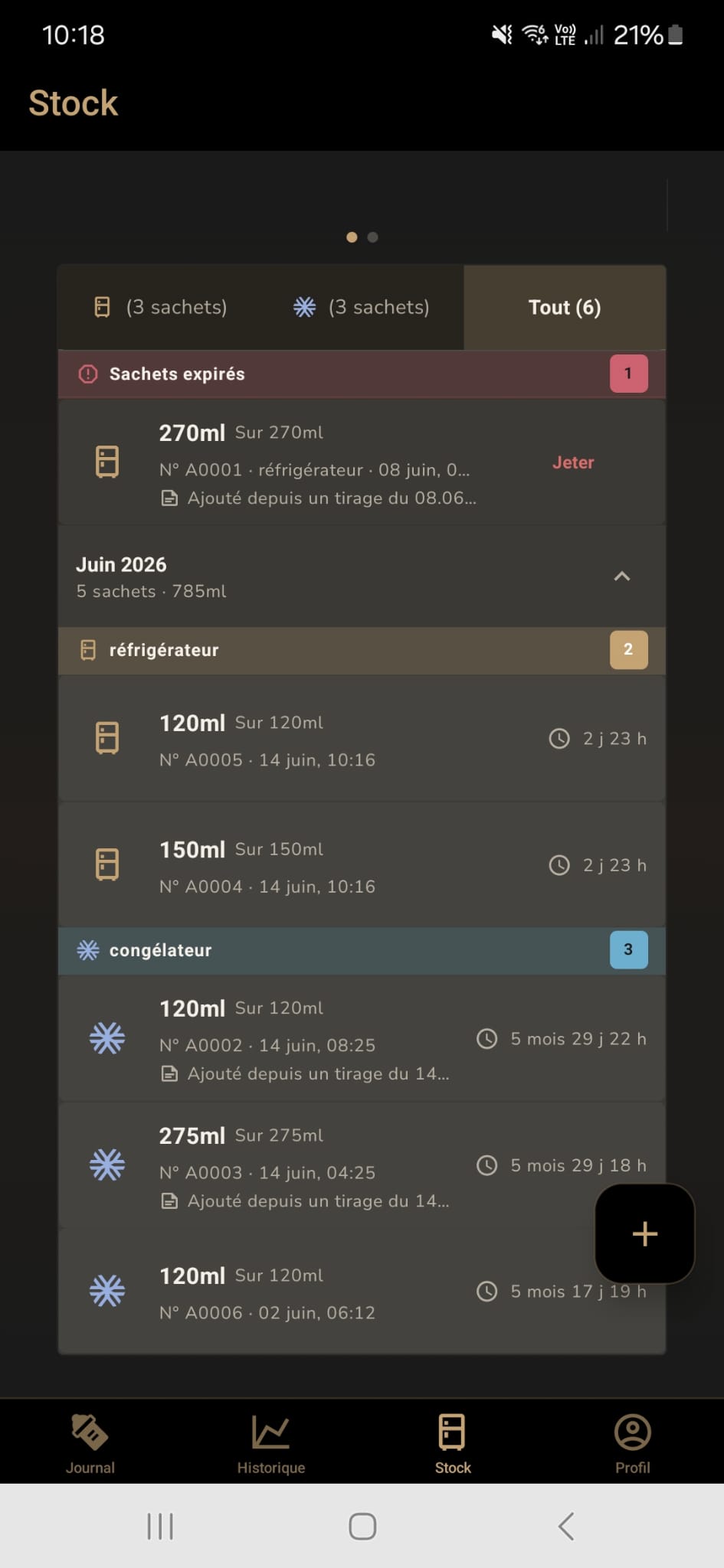
With Premium, manage your breast milk in the fridge and freezer. Track remaining volumes, expiry dates and bags to use soon based on the recommendation you choose.
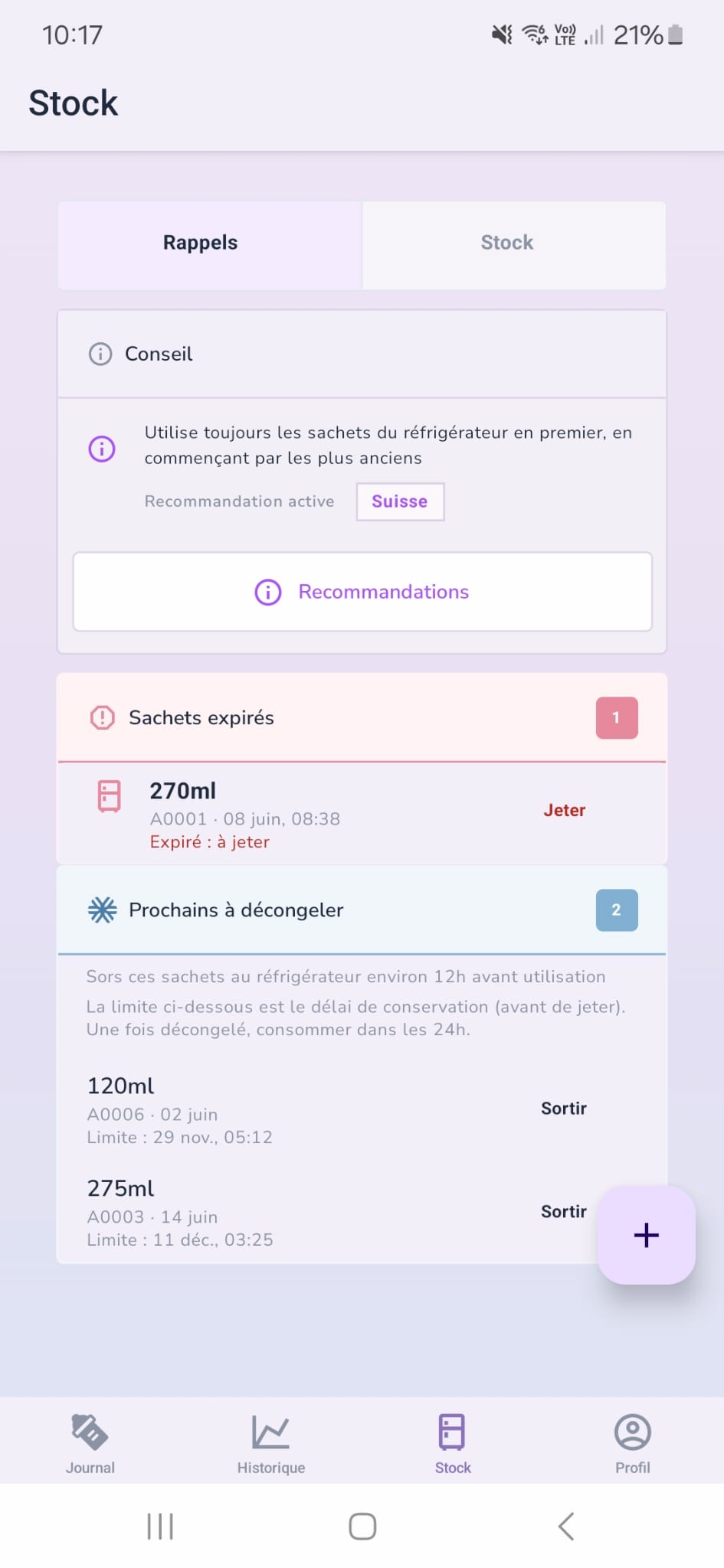
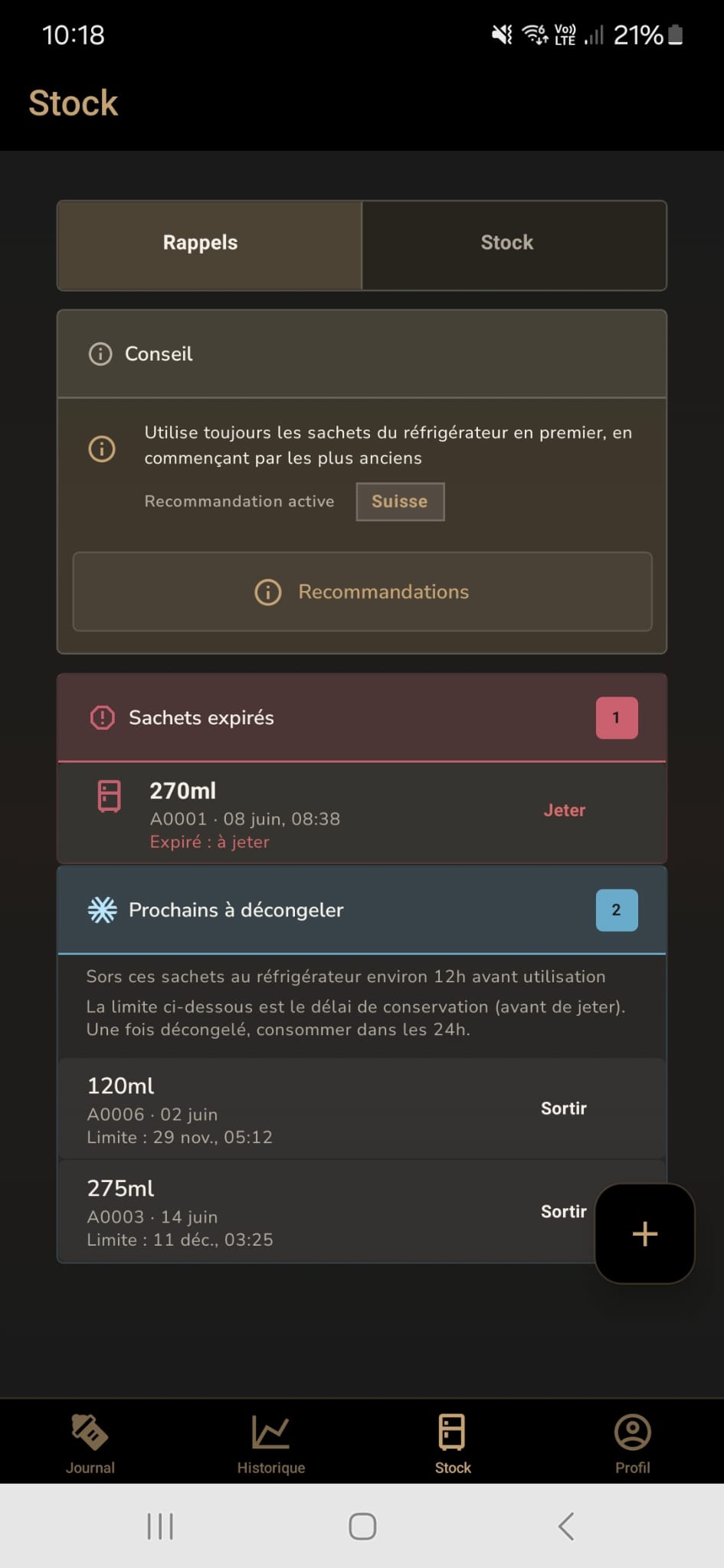
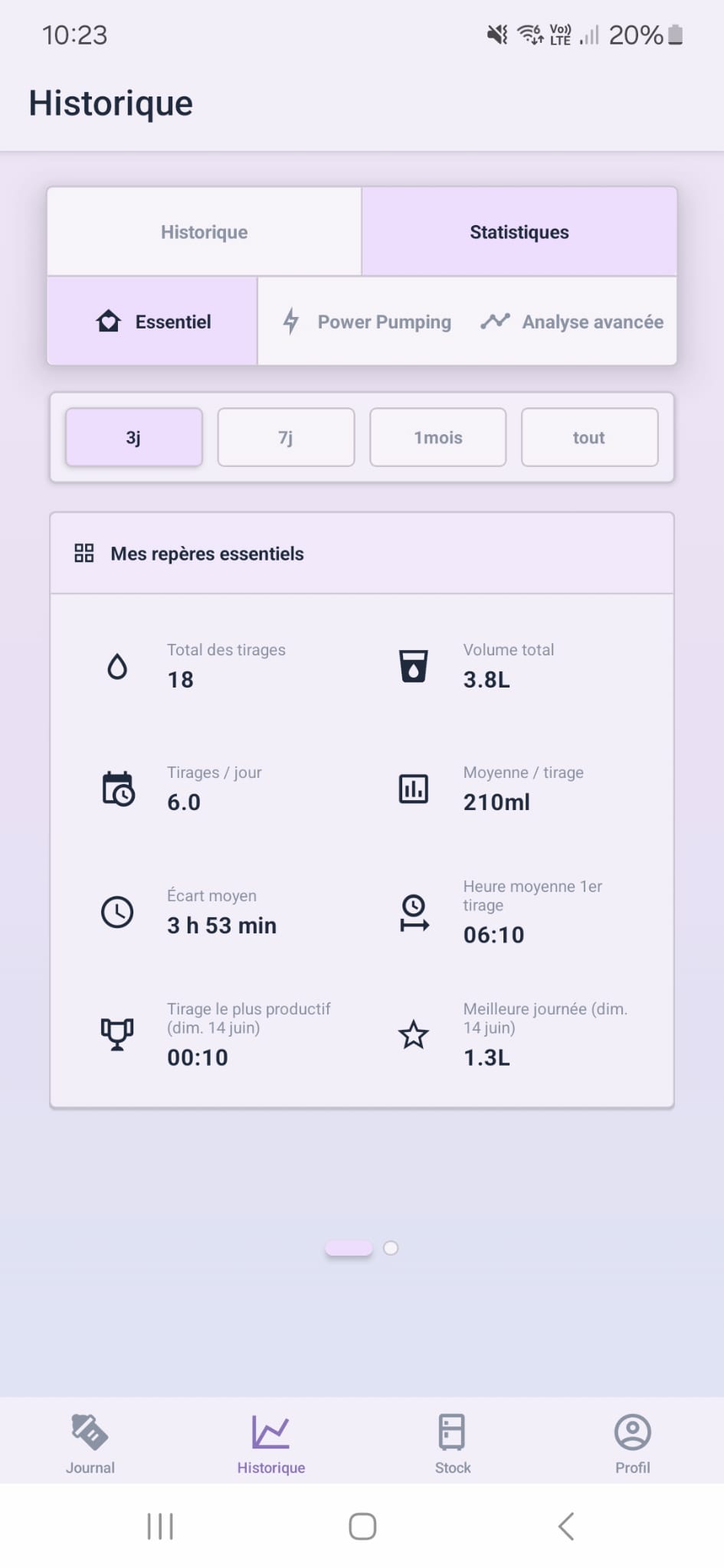
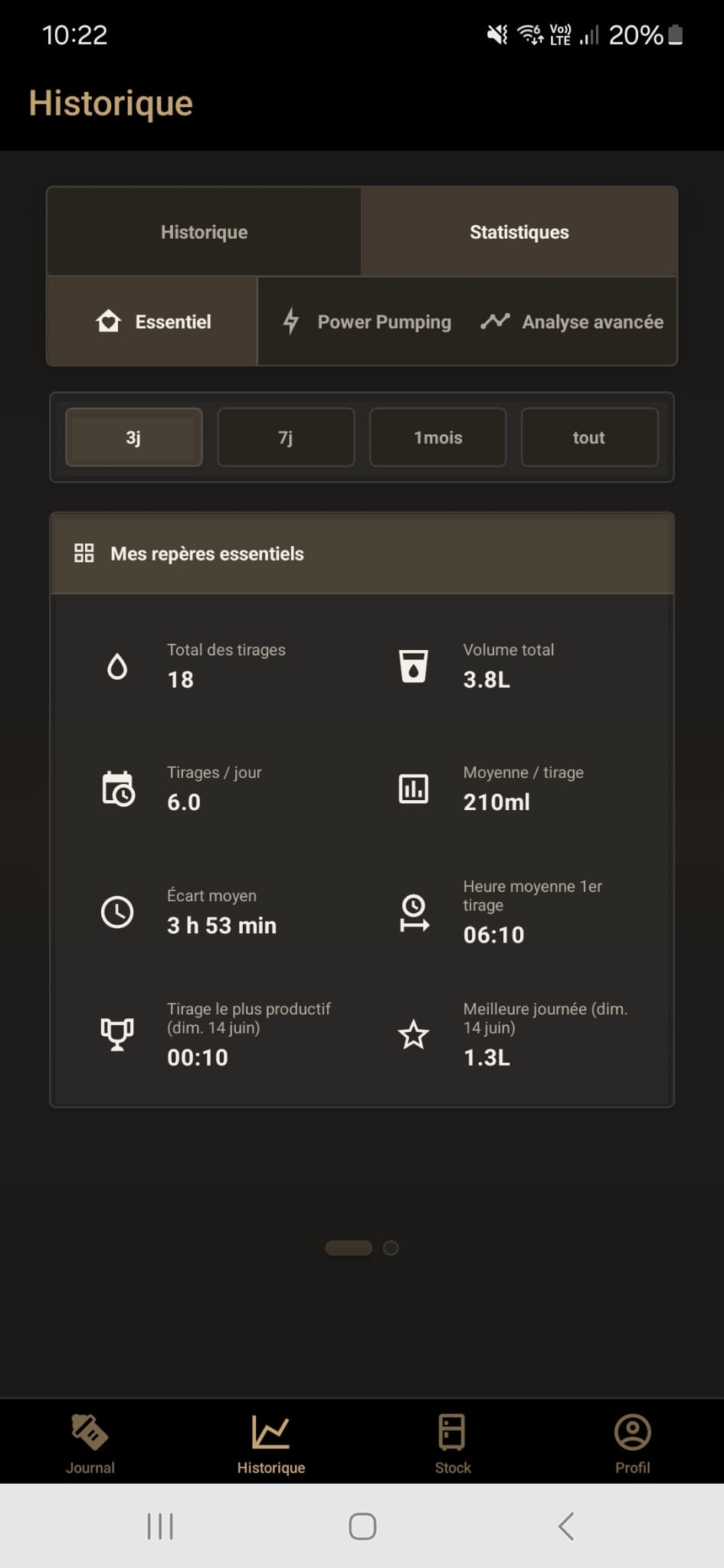
Analyze your pumping sessions with readable stats: total volume, daily average, number of sessions, average interval, left/right split and trends. The 3-day period is free; extended periods are Premium.
The basic journal remains usable locally. Premium unlocks advanced modules, then online backup only if you choose to enable it.

Premium is designed for parents who want more complete tracking: storage, long history, equipment, Power Pumping, sync and sharing.
The complete in-app FAQ, organized by module so you can quickly find an answer.
You can log the time, duration, one total volume or left/right volumes, a note, tags and, with Premium, the equipment used. The daily summary updates automatically.
They help you avoid typing every value manually when you are in a hurry. In Profile > Settings > Pump entry editing, you can choose Total or Left / right mode and show or hide the shortcuts.
From Journal, choose Power Pumping, then a Classic, Express or custom protocol. The session guides pumping and rest phases, can send notifications if they are allowed, then opens a prefilled pumping session at the end.
If you add one or several bags from a pumping session, the app keeps the link. For a single bag, it can offer to update the linked bag if you edit the volume; for several bags, the bag volumes stay independent.
Total is the fastest option when you want to log one amount. Left / right keeps the detail for each side and feeds the split statistics. You can change the default mode in Settings.
History shows days and pumping sessions. Stats summarizes volumes, rhythms, gaps, left/right sides when they are filled in and trends over the selected period.
In the free version, only the last 3 days of history are visible and stats stay on 3 days. Premium unlocks full history, 7-day/30-day/all-time stats periods, Power Pumping and advanced stats.
Yes. You can filter by left/right side, notes and tags, then open the details of a day or a pumping session.
The app needs enough pumping sessions over the selected period. Sessions logged as Total feed the overall volume, but not the left/right split; use Left / right mode for those stats.
Advanced stock management is a Premium feature. In shared mode, it also depends on the permissions granted by the profile owner.
From Stock, use the + button and choose Fridge or Freezer. You can create several identical bags or adjust each bag one by one. You can also split a pumping session directly from Journal.
It highlights bags to use soon, expired bags and freezer bags to use first based on the active recommendation.
Yes. Choose the partial use action and enter the remaining volume. If the remaining volume reaches 0, the bag is marked as consumed.
Yes with Premium, in Profile > Settings > Milk storage recommendation. You can choose a recommendation or use a custom duration. This remains a helper, not medical advice.
Monthly groups make it easier to find older or newer bags. The Reminders tab still helps prioritize bags to use soon, based on their expiry date.
Automatic is based on your last pumping session and recalculates after each new session. Custom lets you choose a date, time, interval and number of reminders.
You have presets every 2, 3 or 4 hours, and you can enter a custom interval. The planner shows a preview before you confirm.
They let you enable alarm mode and plan over the next 24 hours. If you prefer, you can create a single one-time reminder.
Yes. In the reminder list, open or swipe a reminder to edit or delete it. You can also delete all reminders.
You can change the language, volume unit, theme, day/night times, Total or Left / right entry mode, volume shortcuts and, with Premium, the storage recommendation.
It stores baby's first name and birth date to display their age and better organize the profile.
With Premium, you can save your breast pumps and left/right flange sizes. Each pumping session keeps a snapshot of the equipment used, even if you edit it later.
Calculations and recommendations are here to help you day to day. If you have any doubt about storage, quantity or your baby's health, always follow advice from a healthcare professional.
In Profile > Help and support > Tutorial, you will find useful updates and mini simulations for logging a pumping session, managing stock, scheduling a reminder or reviewing history.
It links your account and subscription. Email sign-in alone does not necessarily enable online sync.
Local Premium unlocks features on this device. Premium + online backup adds backup, sync between devices and sharing, with your explicit consent.
Premium unlocks advanced stock, full history, detailed stats, equipment, online sync and collaborative sharing.
Wait a few moments, then open Profile > Account or Premium and use Restore purchases / Refresh. Activation may require a store-side verification.
To avoid mixing baby's data, PumpDiary does not automatically back up older local data with a different email. You can sign in with the right email, start without old data or keep those data only on this phone.
Sharing requires Premium + online backup. Go to Profile > Sharing, generate a secure link or code, then send it to the invited person. The link opens the app if it is installed, otherwise it can guide them to the store.
Co-parent gives full write access. Other gives read access depending on the selected modules, such as History/Stats and/or Stock.
They only see the modules included in the share. For example, if Stock is not selected, the Stock tab remains inaccessible.
Yes. The owner can revoke a link or member. The invited person can also leave shared mode from Profile > Account.
Open the link you received or enter the code in PumpDiary. Email sign-in is required to activate sharing; your quick preferences stay local to your phone.
Yes, as long as you do not enable online backup. In local Premium, data stays on the device and sharing remains disabled.
Online sync and sharing stop. You can continue locally and enable consent again later from the account.
Resetting deletes local data from this device and cancels scheduled notifications. Deleting the account also deletes online backup data linked to the account, if you are signed in.
Go to Profile > Help and support > Contact to send a message to support with useful context.
The Terms of Use, Terms of Sale, Privacy Policy, Legal Notice and account deletion help are available in Profile > Settings > Legal information, even without a signed-in account.
Start simply: local journal without an account, then Premium if you want storage, full history, online backup and sharing.

Review our terms of use, terms of sale, privacy policy, and legal notice.
https://www.pumpdiary.com/#privacy · https://www.pumpdiary.com/#cgv · https://www.pumpdiary.com/#legal
Version: 1.2 Effective date: 14/05/2026 Last updated: 14/06/2026 Publisher: independent developer (natural person) based in Geneva, Switzerland. Full legal identity of the publisher: Roberto Galati. Full postal address: P.O. Box 1073, 1227 Carouge, Switzerland. Support contact: support@pumpdiary.com Legal contact: legal@pumpdiary.com Privacy contact: privacy@pumpdiary.com
These Terms of Use define the conditions for using the PumpDiary mobile application. The application is offered primarily to users located in Switzerland, France and the European Union.
Using the application implies acceptance of these Terms of Use. If the user does not accept the Terms of Use, they must stop using the application.
PumpDiary is a personal journaling and planning tool for breastfeeding and expressing breast milk. In particular, it allows:
The user agrees to:
PumpDiary is not a medical device within the meaning of Regulation (EU) 2017/745, the Swiss Ordinance on Medical Devices or any equivalent regulation.
The application does not perform any diagnosis, therapeutic recommendation, dosage calculation, medical monitoring or alert based on a medical analysis of the data.
The content and features are provided for informational and organizational purposes. Any question relating to health, breastfeeding or the child's health must be addressed with a qualified healthcare professional.
PumpDiary does not use any generative artificial intelligence service, predictive analysis, and does not transmit any user data to third-party AI services.
The publisher makes efforts to ensure availability of the application, without any obligation to achieve a specific result. Temporary interruptions may occur for maintenance, evolution or incident handling.
The publisher may suspend or close an account in the event of non-compliance with the Terms of Use, fraudulent behavior or harm to the security of the service.
The user may stop using the application at any time. An account deletion mechanism is available directly in the application: Profile > Online backup card > Delete my account.
All elements of the application (trademarks, content, design, code, logos) are protected. Any unauthorized reproduction, extraction or reuse is prohibited.
The publisher cannot be held liable for indirect damages, temporary interruptions, data losses attributable to external causes, device or network failures, non-compliant uses or misinterpretations of the displayed information.
The user remains solely responsible for assessing the quality and suitability for consumption of stored milk. The displayed storage indications are based on general public recommendations or on parameters chosen by the user and do not replace professional advice.
Nothing in these Terms of Use limits the mandatory rights granted to consumers by applicable laws.
The application may rely on strictly necessary third-party services, including hosting/database services for online backup and subscription management. Reminders are mainly scheduled locally by the device. Data processed by service providers is described in the Privacy Policy.
The Terms of Use may be modified to take legal, technical or functional changes into account. The applicable version is the version in force on the date of use. In the event of a substantial change, the user is informed by any appropriate means.
These Terms of Use are governed by Swiss law. Unless mandatory legal provisions provide otherwise, the competent courts are those of the district of Geneva, Switzerland.
For consumers residing in the European Union, mandatory consumer protection rules applicable in their country of habitual residence also apply.
Version: 1.2 Effective date: 14/05/2026 Last updated: 14/06/2026 Seller: independent developer (natural person) based in Geneva, Switzerland. Full legal identity of the seller: Roberto Galati. Full postal address: P.O. Box 1073, 1227 Carouge, Switzerland. Support contact: support@pumpdiary.com Legal contact: legal@pumpdiary.com Privacy contact: privacy@pumpdiary.com
These Terms of Sale define the conditions for subscribing to and using PumpDiary's paid offers.
Premium rights are activated after payment confirmation by the platform. In the event of a temporary technical delay, the seller uses reasonable means to restore access. If the issue persists, the user may contact support@pumpdiary.com.
For consumers in the European Union, the right of withdrawal may be limited for digital content or services supplied immediately, where performance begins with the consumer's prior express consent and acknowledgment of the loss of the right of withdrawal, in accordance with applicable rules.
When subscribing through Apple App Store or Google Play, the refund policies of these platforms apply. Any refund request should primarily be made directly to the relevant store.
The user may cancel at any time for the following period from their store account. Cancellation takes effect at the end of the current billing period. No prorated refund is due, unless required by law or platform policy.
The seller is bound by a best-efforts obligation. The seller's liability cannot be incurred in the event of malfunction attributable to the user's device, network, payment platforms or a third-party service outside reasonable control.
PumpDiary is a personal journaling and planning tool. It is not a medical device.
The Terms of Sale may be modified. The applicable version is the version accepted at the time of subscription. Changes do not apply retroactively to periods already billed.
These Terms of Sale are governed by Swiss law. Consumers' mandatory rights in their country of residence remain applicable.
European online dispute resolution platform: https://ec.europa.eu/consumers/odr
Version: 1.3 Effective date: 14/05/2026 Last updated: 14/06/2026 Data controller: independent developer (natural person) based in Geneva, Switzerland. Full legal identity of the controller: Roberto Galati. Full postal address: P.O. Box 1073, 1227 Carouge, Switzerland. Privacy contact: privacy@pumpdiary.com Legal contact: legal@pumpdiary.com Support contact: support@pumpdiary.com
This policy explains how PumpDiary collects, uses, stores and protects users' personal data. It is interpreted in light of the Swiss Federal Act on Data Protection and the GDPR where applicable.
Local mode without an account:
Premium account mode with online backup:
PumpDiary may process health-related data when the user enters it, including:
This data is based on explicit consent in online backup mode. The application does not prescribe any treatment, make any medical recommendation or calculate any dosage.
The user may enter identification data for their child: first name, date of birth and sex. This data is processed under the responsibility of the parent or legal representative who enters it. PumpDiary does not carry out nutritional, medical or growth monitoring of the infant.
PumpDiary may process stored volumes, dates, storage methods, stock statuses and withdrawal events. This data is used to manage a personal inventory of expressed milk and not for nutritional recommendation.
This data is not used for advertising, tracking or artificial intelligence.
PumpDiary does not collect:
| Purpose | GDPR legal basis | Swiss FADP legal basis |
|---|---|---|
| Provide the service in local mode | Performance of contract | Contractual necessity |
| Create and manage the online backup account | Performance of contract | Contractual necessity |
| Process health data in online backup mode | Explicit consent | Explicit consent |
| Process infant identification data | Consent of the legal representative and performance of contract | Consent of the legal representative and contractual necessity |
| Manage premium subscriptions | Performance of contract | Contractual necessity |
| Respond to support | Performance of contract or legitimate interest | Contractual necessity or overriding interest |
| Security, fraud prevention and continuity | Legitimate interest or legal obligation | Overriding interest or legal obligation |
Where the legal basis is consent, the user may withdraw it at any time, without retroactive effect on processing already carried out.
Data may be shared, strictly on a need-to-know basis, with the following categories:
| Processor or service | Role | Main location |
|---|---|---|
| Supabase, Inc. | Authentication, database hosting, online synchronization | Singapore, with processors notably in the United States and the EU |
| RevenueCat | Technical management of premium subscriptions | United States |
| Apple App Store | In-app billing on iOS | United States / Ireland for some EU users |
| Google Play | In-app billing on Android | United States / Ireland for some EU users |
| Device notification system via Expo Notifications | Local scheduling of reminders on the device | User device / operating system |
As of this version, PumpDiary does not collect a server push token to send remote notifications containing your pumping data. Reminders are scheduled locally on the device.
No artificial intelligence processor processes personal data of PumpDiary users.
Some processors may be established outside the European Union, the European Economic Area or Switzerland. Where required, these transfers are governed by appropriate safeguards, including standard contractual clauses, Swiss addendum, encryption in transit and access controls.
| Type of data | Duration or effect |
|---|---|
| Active account data | For the duration of online backup service use |
| Online backup data controlled by PumpDiary after account deletion | Deletion of operational data associated with the online backup account upon confirmation, subject to temporary technical copies, security logs or legal obligations outside the application database |
| Online backup data deletion only | Deletion of synchronized online backup data and retention of local data if the user chooses this option |
| Local data | Stored on the device until the user deletes it, resets the application or chooses complete deletion including local data |
| Internal subscription data | Deleted or dissociated from systems controlled by PumpDiary upon account deletion; stores and RevenueCat may retain their own supporting records according to their obligations |
| Support data | Retained for the time necessary to process the request, for security and applicable obligations, then deleted or anonymized according to retention procedures or upon account deletion where possible |
| Technical and security logs | Retained for a limited duration necessary for security, debugging, fraud prevention or legal obligations; some traces may depend on technical providers |
| Technical backups | May temporarily remain until automatic overwrite according to provider cycles; they are not actively used after deletion |
| Inactive account | No automatic deletion is guaranteed at this stage; the user may delete their account at any time from the application or by email request |
Once deleted from active systems controlled by PumpDiary, the data is no longer used to provide the service, except for legal obligations, security or exceptional technical restoration.
Measures implemented include in particular:
The user has, depending on applicable law, rights of access, rectification, erasure, restriction, objection, portability and withdrawal of consent.
To exercise these rights:
A deletion mechanism is available in the application: Profile > Online backup card > Delete my account.
Depending on the choice displayed in the application, the user may delete only synchronized online backup data while keeping their local data, or delete the online backup account and reset the local data on the device.
The user may lodge a complaint with the competent authority, including the FDPIC in Switzerland or the CNIL in France where applicable.
The application is intended for adults or people aged at least 16 according to applicable rules. Infant-related data is entered by the parent or legal representative. It is not used for profiling, marketing, medical recommendation or nutritional monitoring.
As of this version, the mobile application does not use advertising cookies, marketing tracking SDKs, identifying third-party analytics, advertising or artificial intelligence services.
Reminders are configured by the user and scheduled locally on their device. They can be disabled in the device or application settings. PumpDiary does not generate any reminder based on medical analysis or recommendation.
PumpDiary is a personal journaling and planning tool. The application is not a medical device, does not perform any diagnosis or therapeutic recommendation and does not replace medical advice.
This policy may be updated. The version in force is the version published in the application on the date of consultation. In the event of a substantial change, the user is informed by any appropriate means.
PumpDiary, independent project Publisher: Roberto Galati Based in Carouge, Geneva, Switzerland Email: contact@pumpdiary.com
The publication director is the person responsible for the PumpDiary project.
Data synchronized through online backup is hosted by providers that comply with applicable data protection requirements, including Supabase.
Elements of the PumpDiary application, including design, texts, illustrations, logos, icons and source code, are protected by intellectual property law. Any unauthorized reproduction is prohibited.
PumpDiary is a personal tracking tool and is not a medical device. The information provided is indicative. Consult a healthcare professional for any question relating to breastfeeding or breast milk storage.
Application: PumpDiary Developer: Roberto Galati Privacy contact: privacy@pumpdiary.com Last updated: 14 June 2026
If you have a PumpDiary online backup account, you can request deletion directly in the application:
This action deletes the PumpDiary online backup account and the associated online backup data controlled by PumpDiary. Depending on the choice displayed in the application, local data on the device may also be deleted, or instead kept locally and detached from online synchronization.
If you can no longer access the application, send a request to privacy@pumpdiary.com.
Please include:
Identity verification may be requested to avoid unauthorized deletion of an account.
When deletion is confirmed, PumpDiary deletes operational data associated with the online backup account, including:
After deletion, some traces may remain temporarily or with providers, only where necessary for legal, security, payment or technical operation reasons:
These elements are not used for advertising, tracking or artificial intelligence.
Deletion requests are processed within a maximum period of one month after receipt and verification of the request. This period may be extended where the request is complex, in accordance with applicable rules.
PumpDiary can be used without an account. In this mode, data stays on the device and is not transmitted to PumpDiary servers.
To delete local data without an account, use the reset option available in the application when present, or delete the application from your device. Local deletion of the application does not automatically delete any online backup account already created.